
Modern video production moves fast. Whether you create YouTube content, client commercials, social media reels, documentaries, or online courses, efficiency matters more than ever in 2026. Editors are expected to deliver polished projects quickly without sacrificing quality. One of the most effective ways to improve productivity is by building custom presets for your editing workflow.
Instead of repeating the same actions on every project, presets allow you to automate recurring tasks and maintain consistency across all your videos. From transitions and audio settings to color grading and export templates, custom presets can reduce editing time dramatically while helping your work look more professional.
This guide explains how to create powerful editing presets, organize them properly, and use them to streamline your post-production process for better speed and consistency.
Why Custom Presets Matter in Modern Editing
Every editor has repetitive actions they perform daily. You may apply the same color correction, audio compression, motion blur, text animation, or export settings repeatedly. Doing these tasks manually wastes time and increases the chance of inconsistency.
Custom presets solve that problem by storing your preferred settings for instant reuse. Instead of rebuilding effects from scratch, you can apply professional adjustments with one click.
Benefits of using presets include:
- Faster project turnaround
- Consistent visual branding
- Reduced repetitive work
- Easier collaboration with teams
- Better organization during large projects
- Improved focus on creativity instead of technical repetition
Professional editors rely heavily on presets because they remove unnecessary steps from the workflow.
Types of Presets Every Editor Should Create
Different projects require different workflow optimizations. The best approach is creating presets for the tasks you repeat most often.
Color Grading Presets
If you regularly edit content with a similar visual style, save your color grading settings as reusable presets. This is especially useful for YouTube channels, podcasts, interviews, and brand videos that need a consistent appearance.
You can create presets for:
- Cinematic looks
- Warm skin tones
- High-contrast commercial styles
- Social media aesthetics
- Black-and-white conversions
- Low-light correction
Using saved grading profiles helps maintain visual consistency across multiple uploads.
Audio Enhancement Templates
Audio quality plays a major role in viewer retention. Instead of manually adjusting EQ, compression, noise reduction, and loudness for every project, create audio presets tailored to your recording environment.
Examples include:
- Voice-over cleanup
- Podcast mastering
- Outdoor interview enhancement
- Dialogue balancing
- Background music ducking
These saved configurations can dramatically reduce post-production time.
Transition and Animation Presets
Motion graphics and transitions often consume unnecessary editing time. If you frequently use zoom effects, text animations, or smooth transitions, convert them into presets for instant access.
Popular preset categories include:
- Zoom transitions
- Speed ramp effects
- Title animations
- Lower thirds
- Motion blur settings
- Social media intro animations
This helps maintain a professional style throughout all content.
Export Presets
Exporting videos with incorrect settings can ruin quality or increase upload times. Save export templates for different platforms so you never need to reconfigure them manually.
Common export presets include:
- YouTube 4K uploads
- Instagram Reels
- TikTok vertical videos
- Facebook ads
- Client delivery formats
- High-bitrate archive exports
This prevents mistakes and speeds up final rendering.
How to Build Effective Presets
Creating useful presets requires planning. Randomly saving effects without organization can make your workflow messy instead of efficient.
Start With Frequently Repeated Tasks
Track your editing habits for several days. Notice which settings or effects you apply repeatedly. Those actions should become your first presets.
Focus on areas such as:
- Audio cleanup
- Basic color correction
- Motion graphics
- Export settings
- Stabilization
- Text formatting
These repetitive processes usually provide the biggest time savings.
Use Clear Naming Conventions
A poorly named preset becomes difficult to locate later. Organized naming systems make editing much faster.
Good examples include:
- YouTube_Vlog_Color
- Podcast_Audio_Clean
- Instagram_Reel_Export
- Fast_Zoom_Transition
- Cinematic_Skin_Tone
Avoid vague titles like “Preset1” or “FinalVersion.”
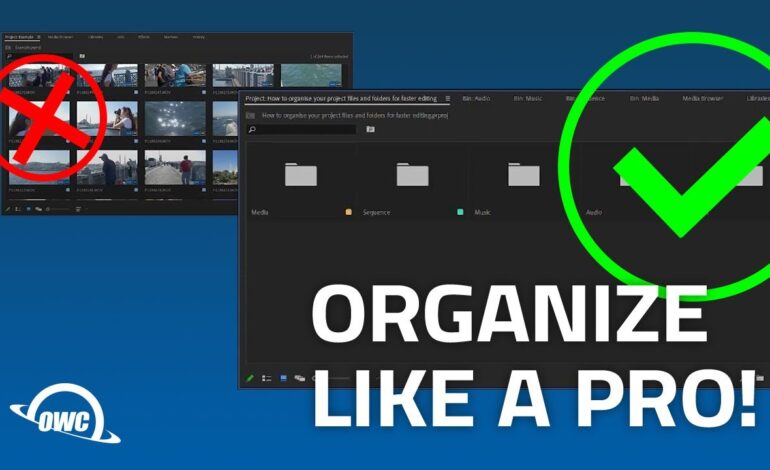
Organize Presets Into Folders
Professional editors often create dedicated folders for:
- Audio
- Color
- Motion Graphics
- Transitions
- Social Media
- Export Settings
This structure prevents clutter and makes navigation easier during large projects.
Best Editing Software for Preset Workflows
Most professional editing programs support advanced preset systems.
Adobe Premiere Pro
Premiere Pro offers extensive preset functionality for effects, transitions, audio settings, and export configurations. Editors can also create custom workspaces for even faster navigation.
DaVinci Resolve
DaVinci Resolve is highly popular in 2026 for its powerful color grading presets and node-based workflow. It allows editors to save advanced correction templates efficiently.
Final Cut Pro
Mac users benefit from smart collections, effect presets, and streamlined motion graphics workflows inside Final Cut Pro.
CapCut and Mobile Editing Apps
Even mobile editors now use presets extensively for social media production. Apps like CapCut and VN Editor support reusable templates for transitions, effects, and captions.
Common Mistakes to Avoid
While presets improve productivity, poor implementation can hurt creativity and project quality.
Overusing the Same Effects
Not every video should look identical. Presets should speed up workflow, not replace creative decision-making.
Always adjust presets when necessary based on:
- Lighting conditions
- Skin tones
- Camera settings
- Brand identity
- Story mood
Treat presets as starting points rather than final solutions.
Ignoring File Organization
Many editors create presets but never organize them properly. Over time, this causes confusion and slows down the workflow.
Review and clean your preset folders regularly to remove duplicates or outdated templates.
Forgetting Backup Storage
Custom presets are valuable assets. Losing them due to system failure can be frustrating.
Store backups using:
- External drives
- Cloud storage
- Shared team folders
- Preset libraries
Keeping backups ensures long-term workflow stability.
How Presets Improve Team Collaboration
In collaborative editing environments, presets help maintain consistency between multiple editors. Teams can share identical templates for:
- Brand colors
- Audio standards
- Motion graphics
- Export settings
- Text formatting
This creates a unified editing style across all projects and reduces revision requests from clients.
Agencies and production houses commonly build internal preset libraries specifically for workflow standardization.
The Future of Editing Presets in 2026
AI-powered editing tools are making presets even more advanced. Many modern platforms now analyze footage automatically and recommend optimized settings based on content type.
Editors increasingly combine:
- AI scene detection
- Smart color matching
- Auto-caption templates
- Voice enhancement presets
- Automated social media formatting
Despite these innovations, custom presets remain essential because they preserve your unique editing style while improving efficiency.
Final Thoughts
Creating custom presets is one of the smartest ways to speed up your editing workflow in 2026. Instead of wasting time repeating technical adjustments, you can focus more on storytelling, pacing, and creativity.
Well-organized presets help editors maintain consistency, reduce stress, improve delivery speed, and handle larger workloads more efficiently. Whether you edit on desktop software or mobile apps, building a personalized preset library can significantly improve your productivity.
The key is to start simple, stay organized, and continuously refine your workflow over time. Small improvements in editing efficiency can save countless hours across multiple projects while helping your content stand out in an increasingly competitive digital landscape.