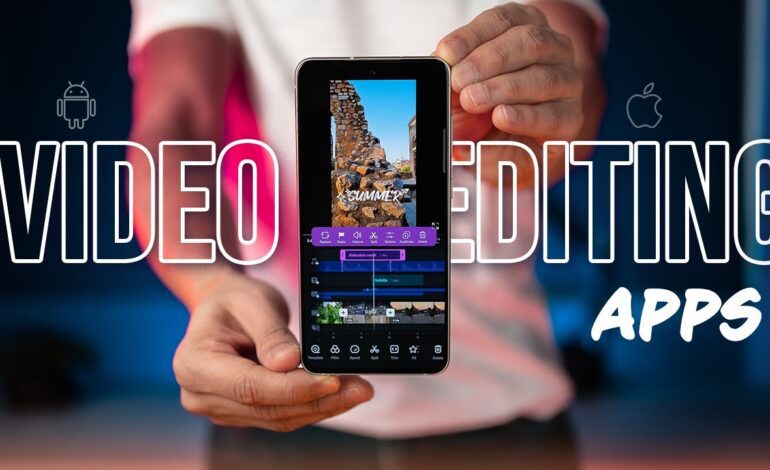
Mobile video creation has evolved rapidly, and in 2026, an iPhone is powerful enough to handle advanced editing workflows once limited to desktop software. Whether you create YouTube content, Instagram Reels, TikTok clips, cinematic travel films, or freelance projects, learning professional editing on an iPhone can save time while delivering impressive results.
Modern iPhones support high-resolution recording, cinematic stabilization, HDR footage, and AI-powered editing tools. Combined with the right editing strategy, your smartphone can become a complete production studio in your pocket.
This guide explains how to edit professional videos on your iPhone using smart techniques, optimized settings, and creator-approved workflows designed for high-quality results and Google Discover-friendly content production.
Start with the Right Video Editing App
Choosing the correct editing application is the foundation of a smooth workflow. Different apps offer different strengths depending on your editing style and content goals.
Some creators prefer beginner-friendly editors with templates, while others need manual timeline controls and cinematic effects.
Popular options in 2026 include:
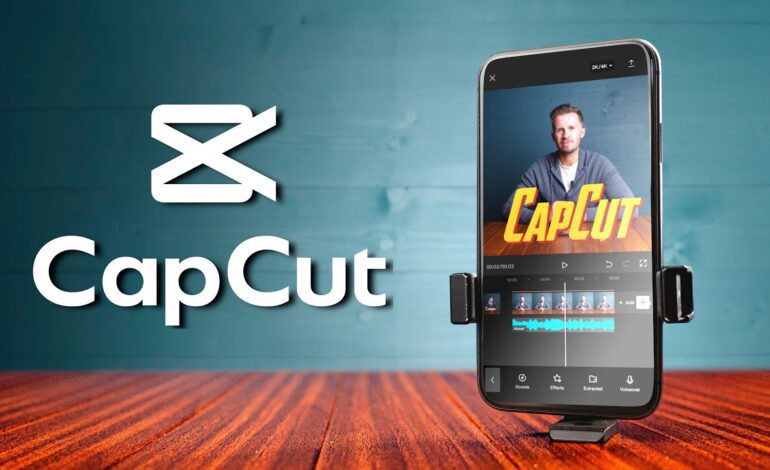
- CapCut for social media content and AI-powered edits
- LumaFusion for advanced timeline editing
- Adobe Premiere Rush for cross-platform projects
- VN Video Editor for beginner-friendly cinematic editing
- Final Cut Camera for Apple ecosystem creators
If you edit short-form content regularly, lightweight apps with auto-captioning and quick export tools can speed up production significantly.
Organize Footage Before You Begin Editing
Professional editing starts with organization. Before dragging clips into your timeline, create a clear structure for your footage.
Separate your files into categories such as:
- Main footage
- B-roll clips
- Audio recordings
- Music tracks
- Sound effects
- Titles and overlays
This prevents confusion during editing and helps maintain a faster workflow. Many creators waste time searching for clips instead of focusing on storytelling.
Deleting blurry or shaky clips before editing also improves efficiency.
Build a Strong Story Structure
Even visually impressive footage feels weak without proper storytelling. A professional edit keeps viewers engaged from the first few seconds.
A simple structure works well for most content:
Hook
Capture attention immediately using movement, emotion, or a bold statement.
Main Content
Deliver information or visuals clearly without unnecessary filler.
B-Roll and Transitions
Use supporting footage to maintain pacing and visual interest.
Ending
Finish with a memorable scene, strong message, or call-to-action.
Short-form platforms especially reward retention-focused editing styles. Fast pacing and visual variety improve watch time and audience engagement.
Use Cinematic Cuts Instead of Overusing Effects
One of the biggest beginner mistakes is adding too many transitions and filters.
Professional editors focus on:
- Clean cuts
- Smooth pacing
- Natural motion
- Balanced color tones
- Audio synchronization
Simple edits often look more cinematic than overloaded timelines full of distracting animations.
Use transitions only when they support the story. Match cuts, speed ramps, and motion blur transitions usually look more polished than flashy preset effects.
Improve Video Quality with Color Grading
Color grading transforms ordinary footage into cinematic content. Most modern iPhone editing apps now support LUTs, HDR adjustments, and manual controls.
Key adjustments include:
Exposure
Fix dark or overexposed footage carefully without losing detail.
Contrast
Increase depth to create a sharper cinematic appearance.
Saturation
Boost colors slightly while keeping skin tones natural.
Temperature
Adjust warmth or coolness to match the mood.
Highlights and Shadows
Recover details for a balanced image.
Consistent color grading across all clips creates a more professional final result.
Enhance Audio for Professional Sound
Good audio quality matters just as much as visuals. Viewers often stop watching videos with poor sound clarity.
To improve audio quality on iPhone edits:
- Remove background noise
- Normalize voice levels
- Add soft background music
- Use fade-ins and fade-outs
- Sync cuts with music beats
External microphones can dramatically improve recordings, but even built-in iPhone audio can sound professional after proper cleanup and balancing.
Avoid music that overpowers dialogue. Clear speech always improves viewer retention.
Master Vertical and Horizontal Editing Formats
Different platforms require different aspect ratios.
Vertical Video (9:16)
Best for:
- TikTok
- Instagram Reels
- YouTube Shorts
Horizontal Video (16:9)
Best for:
- YouTube
- Client projects
- Cinematic storytelling
Square Format (1:1)
Useful for:
- Facebook posts
- Product advertisements
- Certain social campaigns
Professional creators often shoot with extra space around subjects to make reframing easier during editing.
Add Captions and Motion Text
Captions increase accessibility and improve watch time, especially for silent viewers scrolling social media feeds.
Modern iPhone editing apps offer:
- Auto-caption generation
- Animated subtitles
- AI text tracking
- Dynamic typography
Use readable fonts and avoid excessive animations that distract from the content.
Short sentences with strong keywords also improve viewer engagement and discoverability.
Export Videos Using the Best Settings
Export quality can ruin an otherwise excellent edit if settings are incorrect.
For most platforms in 2026, these settings work well:
Recommended Export Settings
- Resolution: 1080p or 4K
- Frame Rate: 30fps or 60fps
- Codec: H.264 or HEVC
- Bitrate: High quality
- Audio: AAC 48kHz
Social media platforms compress uploads heavily, so exporting at higher quality helps preserve detail.
Always preview the final video before publishing.
Speed Up Your Editing Workflow
Professional editors focus heavily on efficiency. Faster workflows allow creators to produce more content consistently.
Helpful productivity techniques include:
- Saving reusable presets
- Using editing templates
- Creating custom transitions
- Organizing music libraries
- Using cloud storage backups
- Editing with keyboard shortcuts on iPad setups
Consistency is often more important than perfection for creators building an online audience.
Optimize Your Videos for Google Discover
Google Discover prioritizes engaging, visually strong, and trend-relevant content.
To improve discoverability:
- Use emotionally compelling titles
- Include high-quality thumbnails
- Focus on trending creator topics
- Add searchable keywords naturally
- Publish evergreen tutorials
- Keep introductions short and engaging
Content about iPhone filmmaking, cinematic editing, creator tools, and mobile productivity performs especially well in Discover feeds.
Fresh content updated for 2026 trends also increases visibility potential.
Final Thoughts
Learning how to edit professional videos on your iPhone is no longer just a beginner skill. Mobile editing has become a serious content production method used by influencers, freelancers, marketers, and filmmakers worldwide.
With the right editing app, strong storytelling, cinematic color grading, clean audio, and optimized export settings, your iPhone can produce videos that compete with desktop-edited content.
The key is consistency, simplicity, and understanding how professional creators structure their edits for modern platforms. As mobile technology continues improving throughout 2026, creators who master smartphone editing workflows will have a major advantage in content creation and freelance opportunities.